Logo Background Remover
Remove the background from your logo instantly.
Drop files here or
By uploading, you agree to Canva’s Terms of Use. Read our Privacy Policy.
Make your logo transparent with the logo background remover on Canva. Effortlessly revamp your logo design or create consistent branding in one click.

Your one-click logo background remover
Skip the time-consuming task of manually removing the background from your logo. With the logo background remover on Canva, you can make transparent logos in one click, no editing skills needed. Simply upload your logo to this page and sit back as Canva removes the background in seconds. Then download your clean logo cutout or open it in the editor to make adjustments.
Revamp your logo design with ease
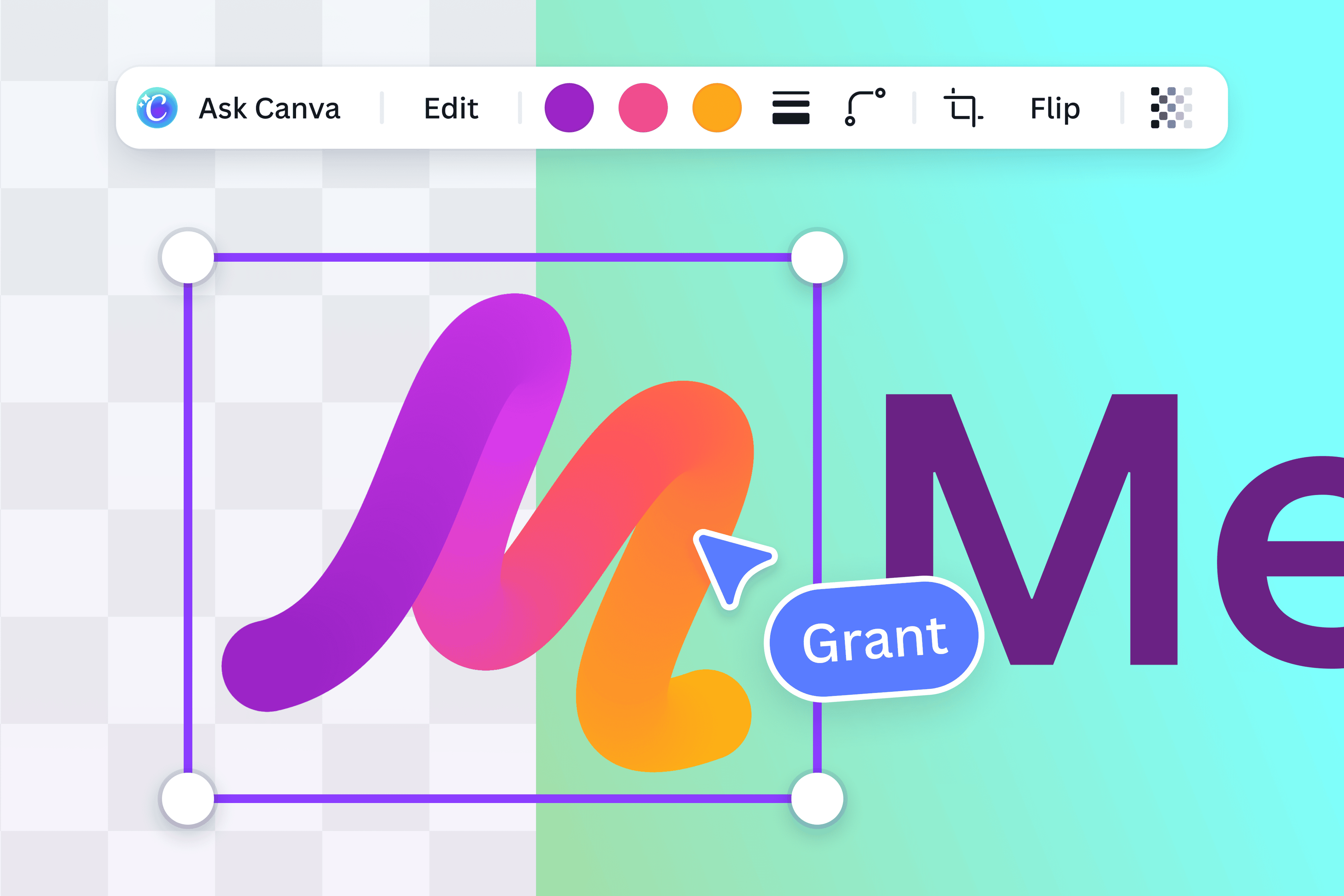
Customize your logo further with our intuitive photo editor. Crop, rotate, or flip your logo as needed. Change the color palette, font, or even the background for a fresh look. Make complex edits look super easy with AI-powered tools like Magic Edit that lets you add or replace elements in your design using a written prompt, or Magic Eraser that brushes away distractions in seconds.

Collaborate seamlessly
Reimagining your logo is easier and more fun with collaborative effort. Easily share access to your design project with your team members, wherever they may be. Assign tasks, leave comments, and collaborate in real time from your web browser or mobile device.

Edit more than just logos
Canva’s Background Remover can be used for more than just logos. It also removes the background from images and even signatures. Access more tools like the Video Background Remover to create scroll-stopping videos with a clean and appealing background.
How to remove the background from a logo
Upload your logo
Select the Upload your image button, or drag and drop your logo file. JPG, PNG, HEIC, and SVG files are all supported.Remove the background automatically
Canva removes the background from your logo the moment you upload it. Simply wait a few moments while Canva processes your logo.Preview your logo
Your transparent logo appears right on the page. Compare it with the original, or upload a different file if it needs another pass.Download your logo
Download your transparent logo as a PNG, ready to use right away.Keep editing your logo
Want to make more changes? Open your logo in the Canva editor to resize, recolor, or add it straight to a design.
Frequently asked questions
- Removing the background from a logo can be effortless with online tools like our logo background remover. The tool allows you to make a transparent logo in a single click.